Understanding how shared billing works in Klaviyo
You will learn
Learn how to request potential shared billing options, how the shared billing process works in Klaviyo, and about the differences between parent and child accounts.
- Shared billing
Functionality to group together companies so that they can potentially share billing details and message sends - Account family
All accounts that are linked together for shared billing - Parent account
Main account that contains the billing details and plan information for an account family - Child account
An account that is linked to a parent account in an account family
Before you begin
You must request to be on a shared billing plan. It is not guaranteed, and instead is considered on a case-by-case basis.
Reach out to Klaviyo Support if you’d like to request shared billing.
Note that shared plans are limited to 20 accounts (in total) for Self-serve customers paying via credit card. There can be one parent account and 19 children accounts. The shared plan limit is 34 (in total) for manually billed customers paying via contract. There can be one parent account and 33 child accounts.
How shared billing works
What it is: Shared billing groups multiple Klaviyo accounts (an account family) so they draw from one pooled email and SMS allotment instead of each paying and sending separately.
Why it's here: It lets related businesses, franchises, or sub-brands consolidate billing and usage under a single plan instead of managing several unrelated subscriptions.
What it lets you do:
- Every account in the family shares one total number of profiles/sends per month.
- Each campaign or flow message sent from any account (parent or child) is subtracted from that shared total.
For example, sending an email campaign to 1,000 people on a child account counts toward every other account's send total in the family, not just that child's.
Where to find it:
Set up by Klaviyo Support on request; once active, you'll see your account family reflected under Settings > Billing> Account Family Dashboard.
Is shared billing the same as being in a portfolio?
No. Shared billing and portfolios are entirely separate. Simply linking 2 accounts to a portfolio does not mean they are on shared billing, and vice versa.
However, you can use them together. For instance, you can have a portfolio where some accounts are on shared billing and others aren't.
Is Shared Billing the same thing as Organizations?
No. Shared Billing is not the same thing as being a part of an Organization. An organization is an account structure that governs account setup. Shared Billing for an Account Family is a billing structure that governs how an account manages its monthly billing cycle.
Can you have an Account Family & be in an Organization or Portfolio?
Yes. You can be in an Account Family and also be in an Organization or Portfolio account structure. These are not mutually exclusive. You can have multiple Account Families inside of an Organization.
Access in parent vs. child accounts
Every account in the account family will have access to the total plan usage. In the parent account, you'll be able to access everything you normally would in a Klaviyo account.
You can change plans, view the individual usage of every child account, and update the billing information. Permission to do this is governed by your user role which you can edit in Settings > General > Users.
Access in child accounts is more limited. In most cases, child accounts will not have access to certain billing pages or features, marked by No access below.
Comparison of access in parent and child accounts
Key: Full ✔ Restricted Ɵ No access ✖
| Parent account | Child account |
Total account usage | ✔ | ✔ |
Usage for an individual child account | ✔ | ✔ |
Usage for all individual accounts | ✔ | Ɵ |
Changes to billing details (card, address, etc.) | ✔ | Ɵ |
Billing preferences page | ✔ | ✖ |
Email and SMS plan lists | ✔ | ✖ |
Klaviyo checkout page | ✔ | ✖ |
Partial cancellation | ✔ | ✖ |
Account Family Dashboard | ✔ | ✖ |
Payment & Invoices Tab | ✔ | ✖ |
A few things to know about child accounts
- Child accounts can't make changes to the family's billing plan, and can't modify billing details (card, address, tax ID, etc.) unless the parent specifically grants that permission.
- Partial cancellation (cancelling just one plan) isn't available on child accounts, since all plans are billed through the parent. To remove a child account entirely, the account itself must be cancelled, and only an Owner or Admin on the parent account can do that. See How to cancel your Klaviyo account.
- Once an account joins a family, its future invoices move to the parent account, since billing is now shared. Invoices from before it joined the family stay visible on that child account.
How to change access for child accounts
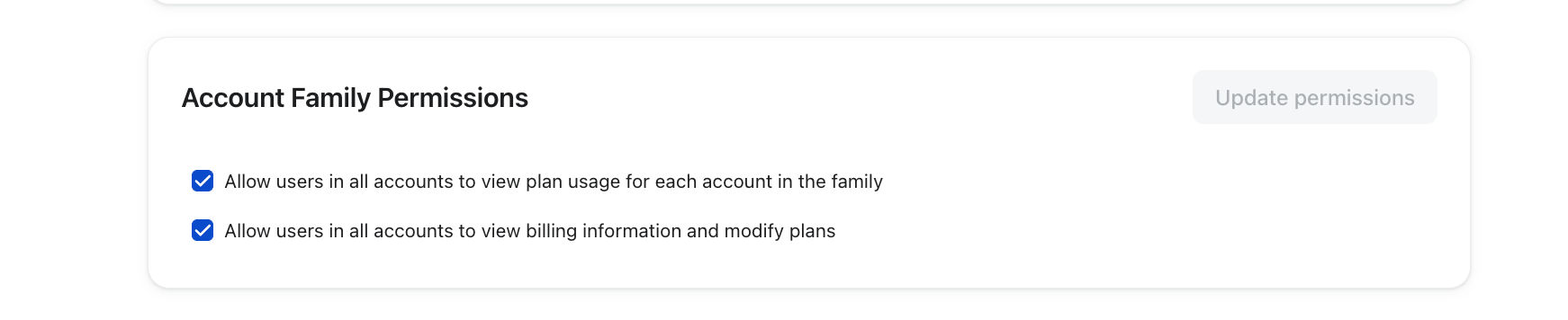
A parent account can adjust these default settings and allow a child account to:
- See the usage for all child accounts in the account family
- Change certain billing details
These are turned off by default. If you want to enable them, you must:
- Log into the parent account as an owner or admin.
- Click your organization name in the bottom left.
- Navigate to Billing.
- Choose Preferences.
- Toggle on one or both of the following options:
- Allow users in all accounts to view plan usage for each account in the family.
- Allow users in all accounts to view billing information and modify plans.
How to see usage across your account family
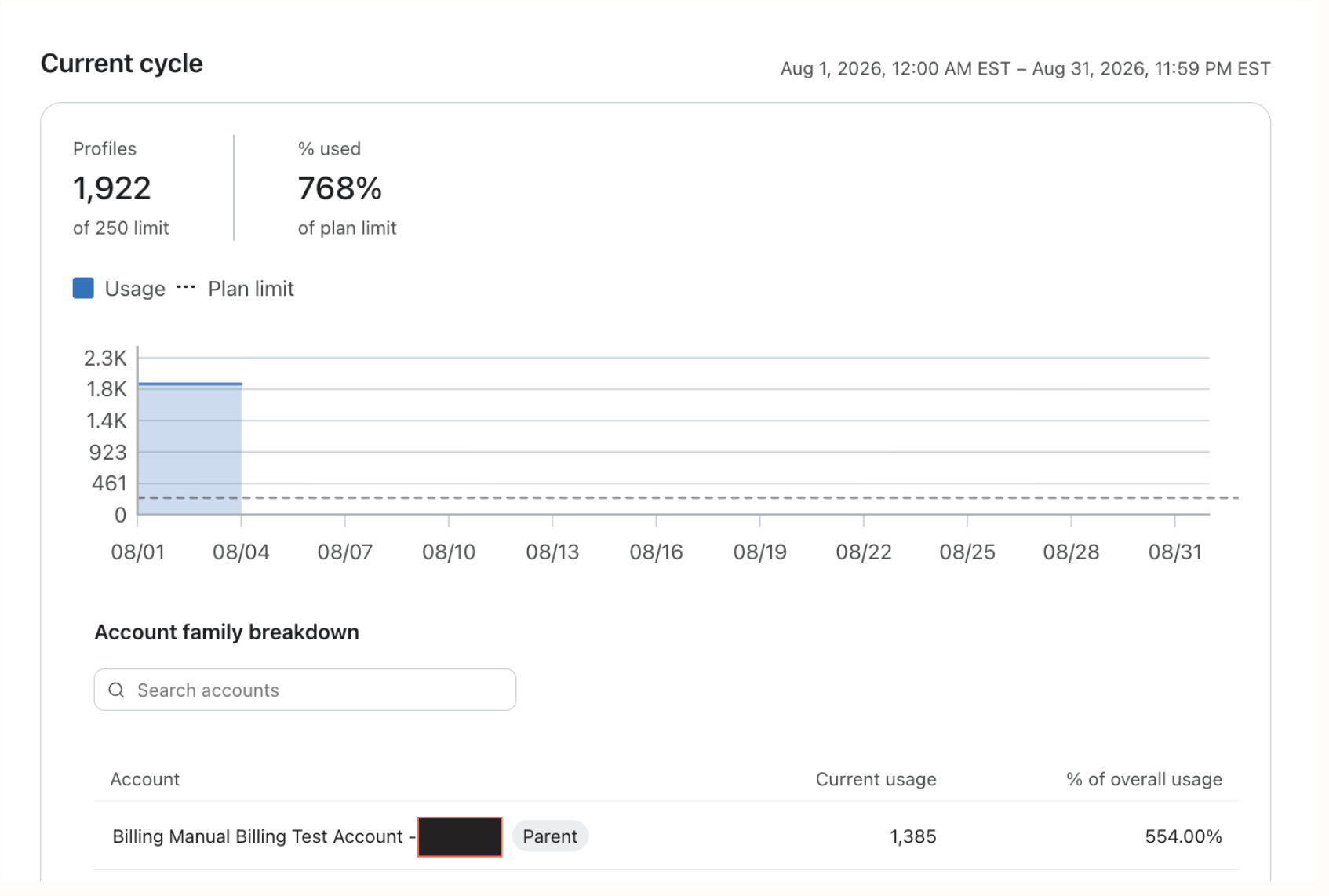
What it is: An Account Family Breakdown table available on every product's plan detail page, showing each linked account's current usage side by side.
Why it's here: Parents previously had no native way to see how each child account contributed to the family's aggregate bill, and often built usage-to-cost spreadsheets by hand to answer that question.
What it lets you do:
- See each account's current usage and what percentage of the family's overall limit it represents.
- Search by account name or KID to isolate a specific account.
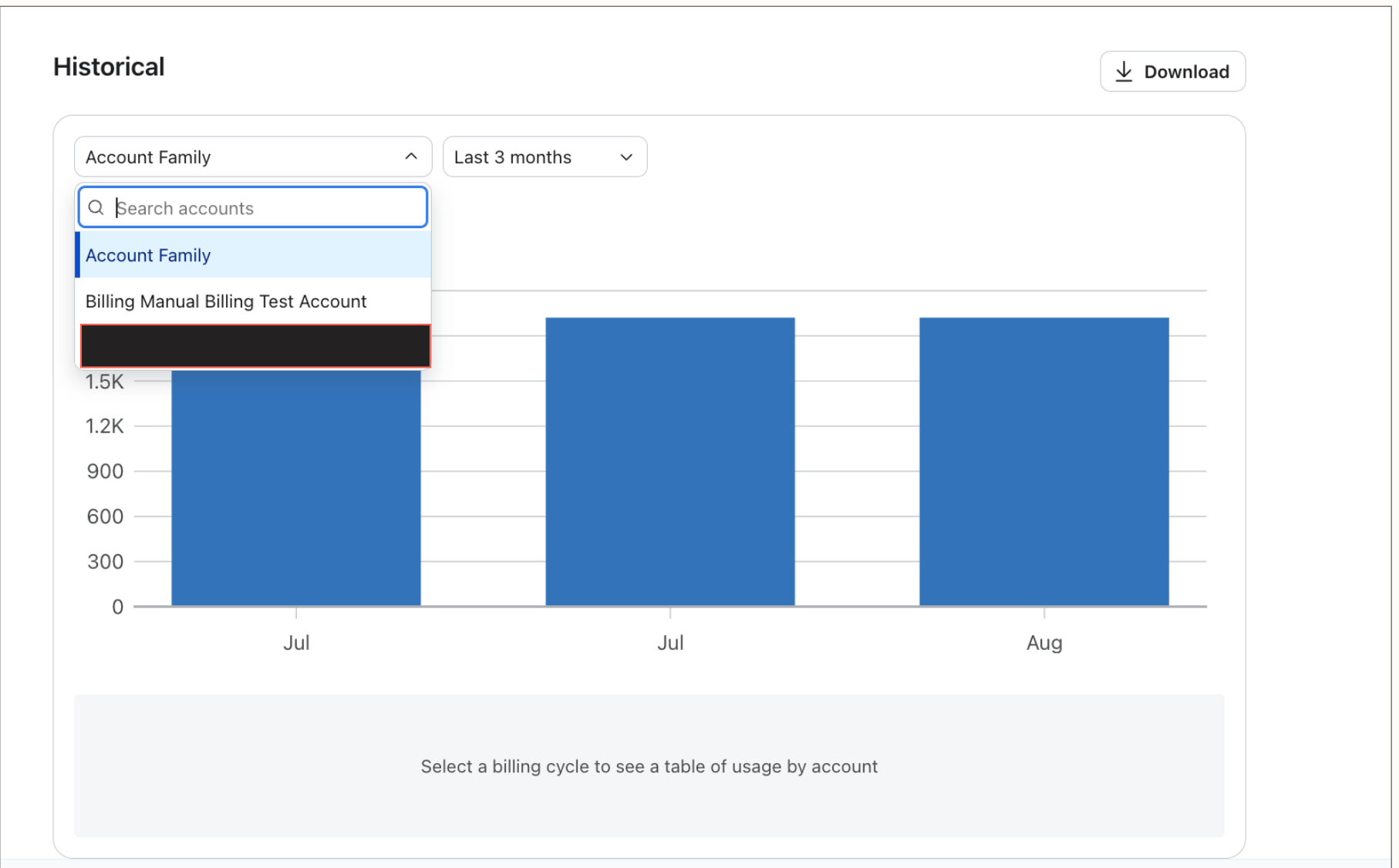
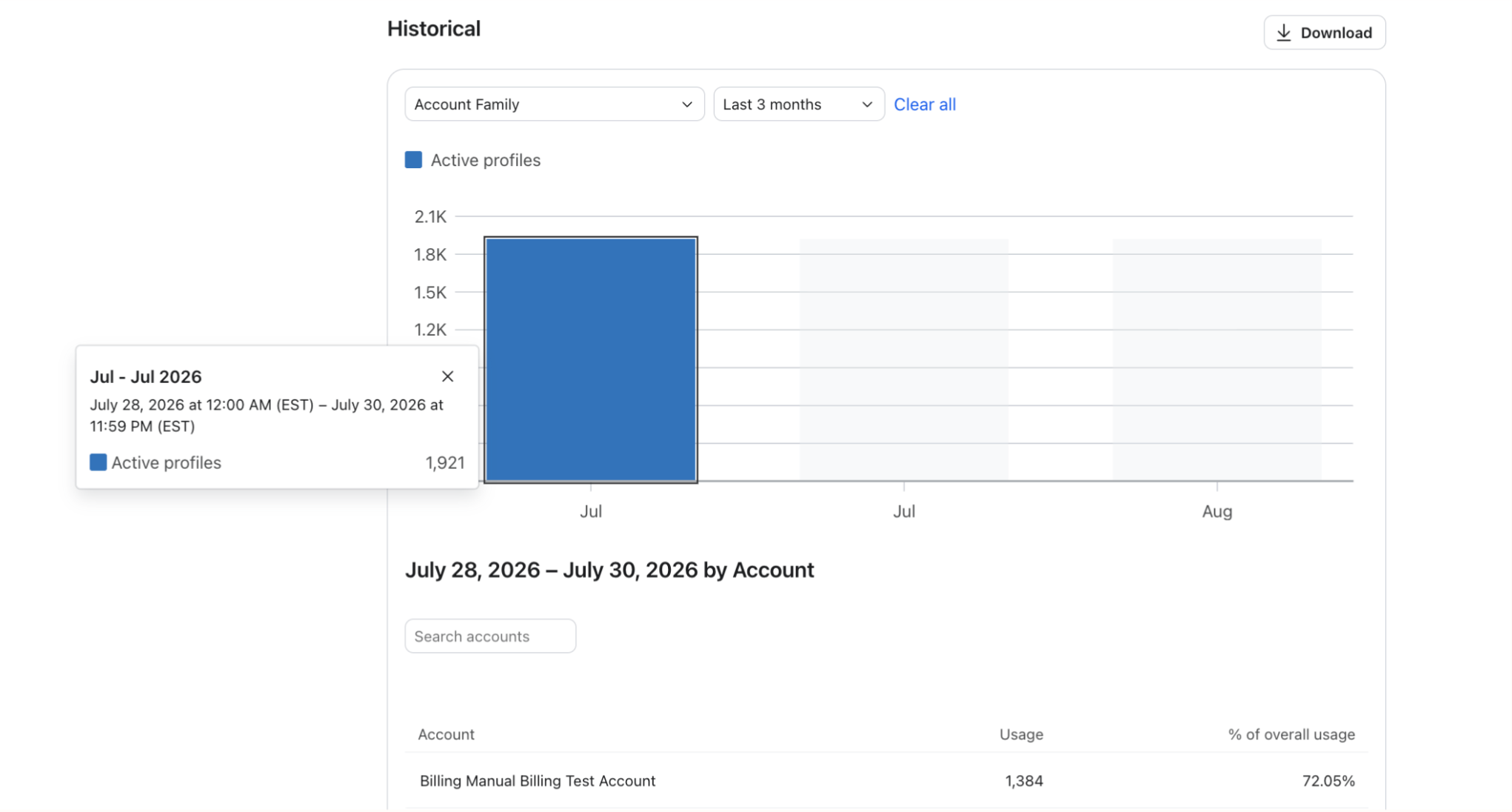
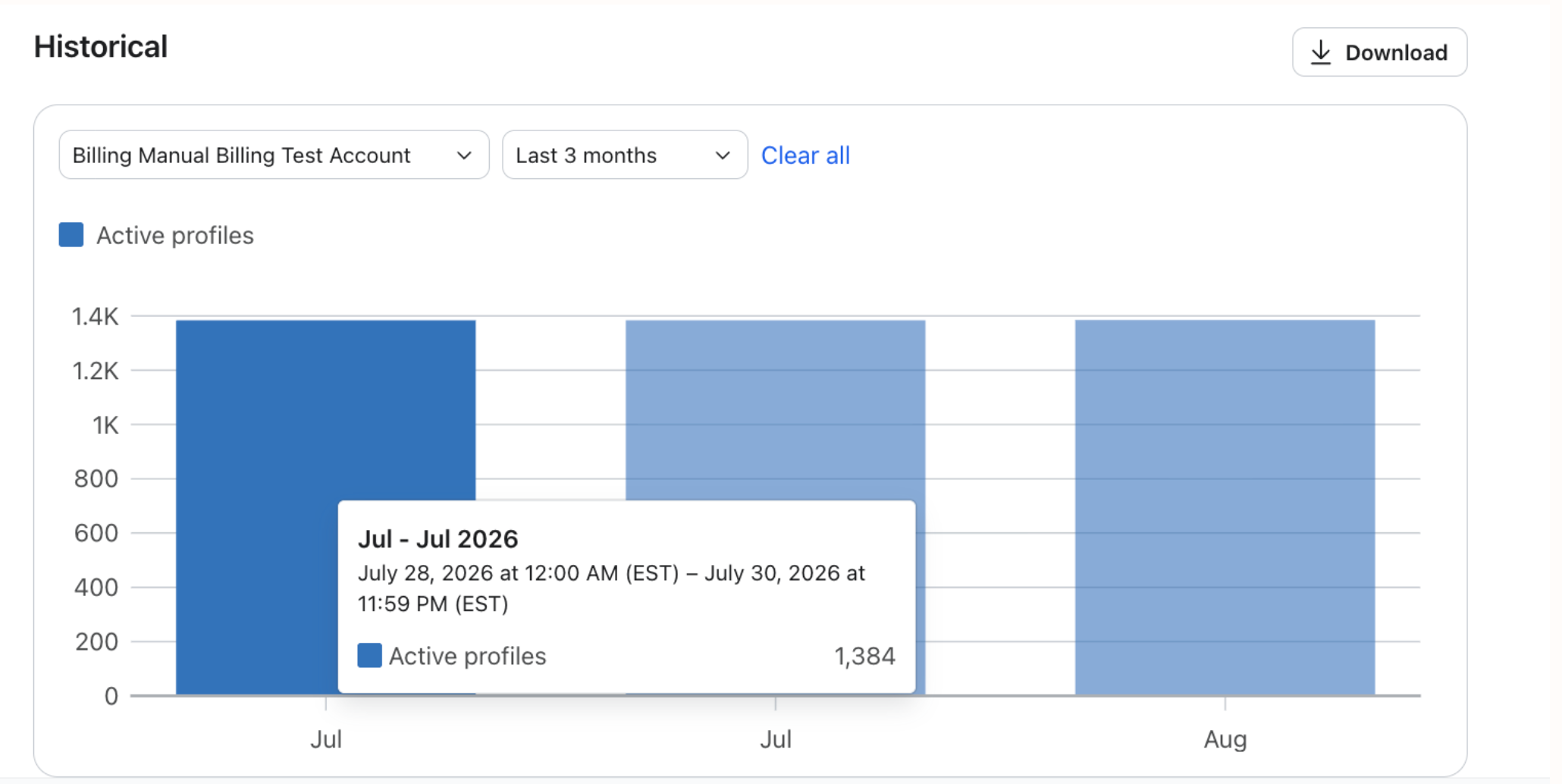
- In Historical Usage, click any bar in family view to see the same breakdown for a past billing cycle, with a download option.
Where to find it: Billing > Overview > Any usage card > View, then look for the Account Family Breakdown table (parent accounts; children only if the parent has enabled the family-usage viewing permission above).
How to see who is in your account family
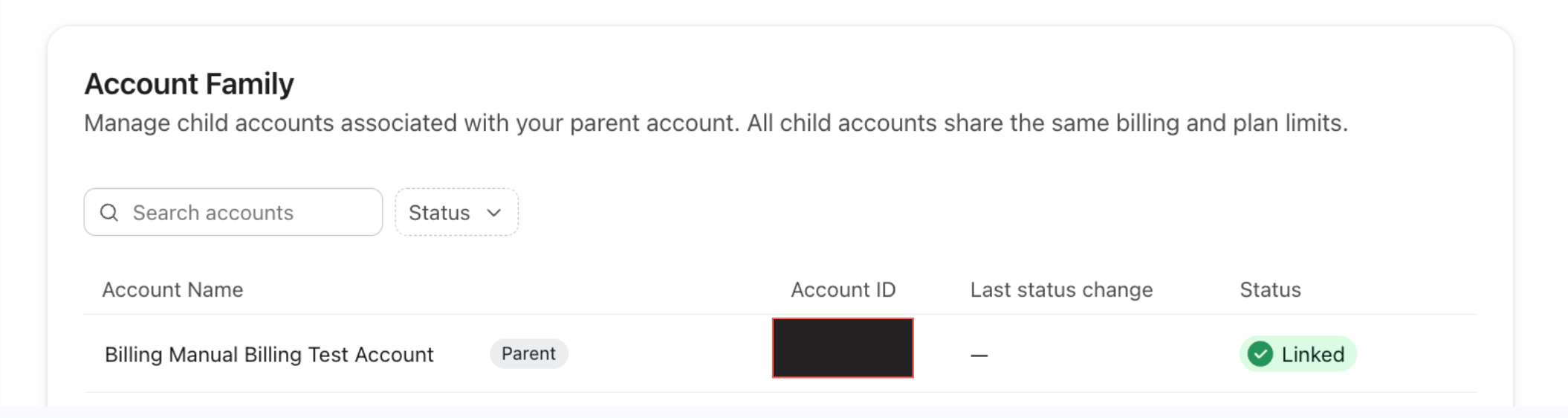
To see what accounts are actively in your account family at any time, you can use the Account Family Dashboard. The Account Family Dashboard lets you see:
- Accounts in the family
- Account ID
- Accounts status (linked vs unlinked)
- Date last changed
Additional resources
- How Klaviyo billing works
Learn how Klaviyo bills customers for Profiles and Emails, Mobile Messaging, Reviews, Advanced Klaviyo Data Platform (formerly “CDP”), Marketing Analytics, Customer Hub, Helpdesk, and Customer Agent.
- Understand Klaviyo's mobile messaging system
Learn about Klaviyo’s billing system for text messages, such as why countries and channels have different credit values and what’s included in these credits.